
Finding the best capture cards for streamers is the key to turning a laggy broadcast into a professional experience. Don’t let choppy video or high latency ruin your hard work. You deserve to share your skills in breathtaking 4K resolution without any complicated setup. We’ve tested the top gear to help you achieve flawless gameplay recording every single time. Let’s dive into the top picks that will transform your channel today.
Contents
- Top 7 CAPTURE CARDS FOR STREAMERS:
- 7: AVerMedia StreamLine Mini+
- 6: Razer Ripsaw HD
- 5: Razer Ripsaw X
- 4: AVerMedia Live Gamer Ultra S
- 3: Elgato 4K S
- 2: EVGA XR1 Pro
- 1: Elgato 4K Pro
- Things to Consider Before Buying a CAPTURE CARDS FOR STREAMERS:
- Resolution Support and Refresh Rate Compatibility
- Understanding Zero-Latency Pass-through
- Performance Gains and Stream Stability
- Hardware Investment and Setup Complexity
- Physical Hardware Connection Procedures
- Software Integration with Popular Streaming Platforms
- Ensuring Cable Quality and Signal Integrity
- Troubleshooting Audio and Video Sync Issues
- Final Words
Top 7 CAPTURE CARDS FOR STREAMERS:
7: AVerMedia StreamLine Mini+

Spending hundreds of dollars on producing polished, expert-looking video is unnecessary if you are just beginning your streaming adventure. The StreamLine Mini+ records in crisp 1080p60, which is the same resolution that is regularly rewarded by Twitch and YouTube. Thanks to 4K60 HDR passthrough, your console gameplay continues to appear on your screen, preserving the integrity of your gaming experience. The setup is completely driver-free and plug-and-play via USB, so you can just plop it into OBS or Streamlabs.
The constraint? There is a limit of 1080p60 for recording. HDMI 2.0 only; absolutely no 4K recording capabilities.This is the best option for budget-conscious console users and first-time streamers. Not for: Those who require 4K video recording.
6: Razer Ripsaw HD

This card fits snugly into a Razer setup, so long as you already own a keyboard, mouse, and headset. The 4K60 HDR passthrough is sent straight to your screen, and it records in crisp 1080p60 with broadcast-ready clarity. Simply launch OBS or Streamlabs, and you’ll be up and running in no time at all thanks to the USB 3.0 plug-and-play feature. Who stands out the most? Unlike most entry cards, this one gives you full control over the mixing process because to its four separate audio channels: game, chat, mic, and aux.
The constraint? There is a limit of 1080p60 for recording. Currently, just support for HDMI 2.0; unfortunately, 4K capture is not available.People using the Razer ecosystem or streamers looking for a powerful integrated audio mixer will love this. Artists requiring 4K final product should not use this.
5: Razer Ripsaw X
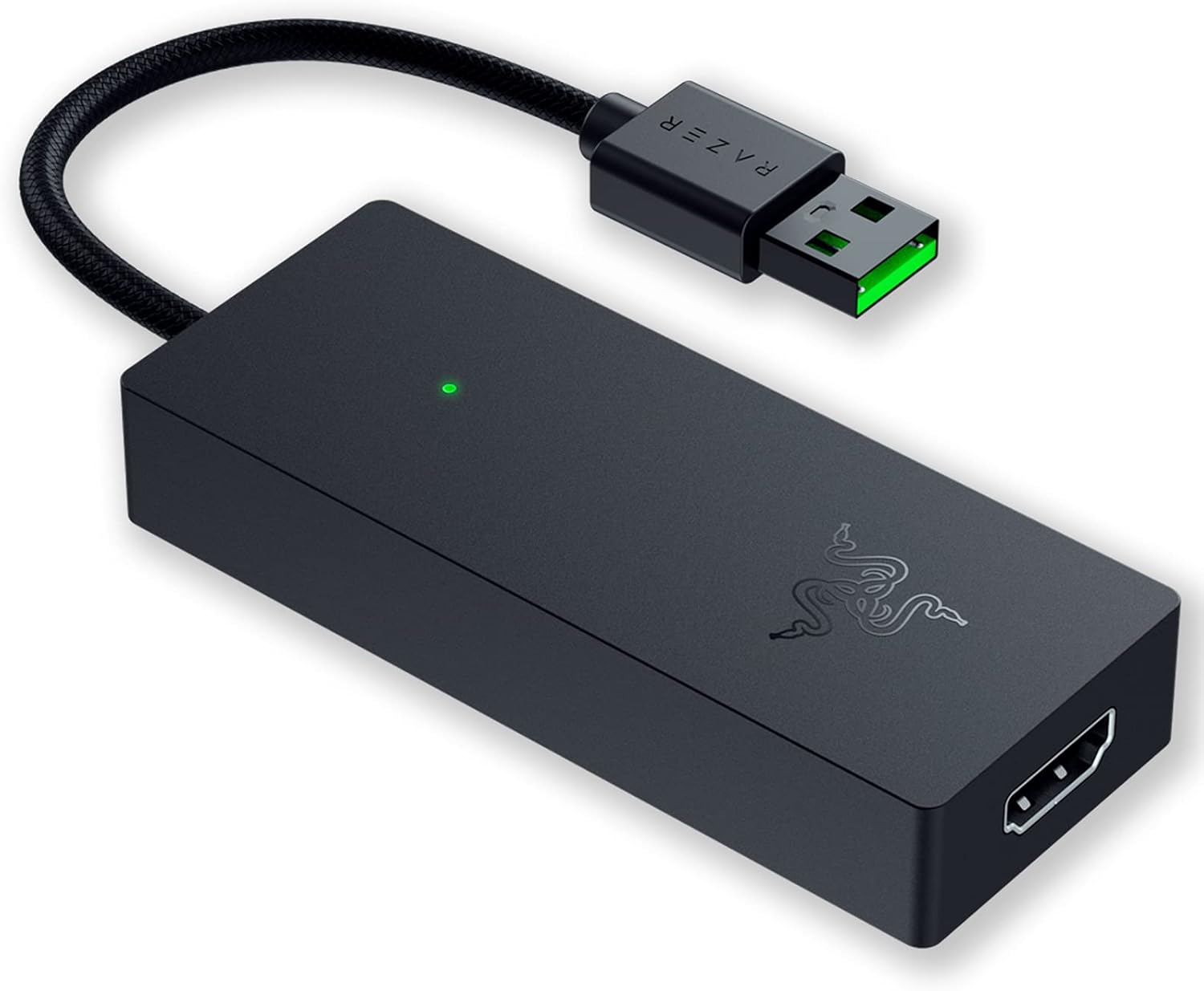
If you’ve been annoyed that all cards below this list quit working at 1080p, the Ripsaw X is the solution. Its ability to record in actual 4K at 30 frames per second is a significant improvement over its competitors. With 4K60 HDR passthrough over HDMI 2.0, your console continues to operate, ensuring that your display receives every frame accurately. Your on-screen gameplay remains fluid thanks to ultra-low latency monitoring.
Plug and play with USB 3.0 eliminates the need to install drivers or software; launch OBS or Streamlabs and you’re live in no time.The constraint? There is no support for 4K60 capture; the highest resolution available is 4K30. No specialized audio mixer comparable to the Ripsaw HD.Who it’s best for: Affordable streamers looking to experience 4K recorded content for the first time. Not for: Content creators requiring 4K60 footage.
4: AVerMedia Live Gamer Ultra S

If you’ve been broadcasting at a professional level but haven’t been satisfied with the results, the AVerMedia Live Gamer Ultra S will transform your life. With HDR10 and VRR passthrough, every detail is preserved in full 4K at 60 frames per second. If you want to record in cinematic slow-motion, it can do so at 1080p240 as well. This is an absolute beast on multiple platforms, thanks to its built-in support for Discord Go Live and 5.1 surround sound capture. Your workspace will remain neat with a clean USB-C connection.
The constraint? There is no 4K120 passthrough because there is no HDMI 2.1.Streamers on several platforms looking for a mid-range cheap option with 4K. People using the next-gen 4K120 passthrough will not benefit from this.
3: Elgato 4K S
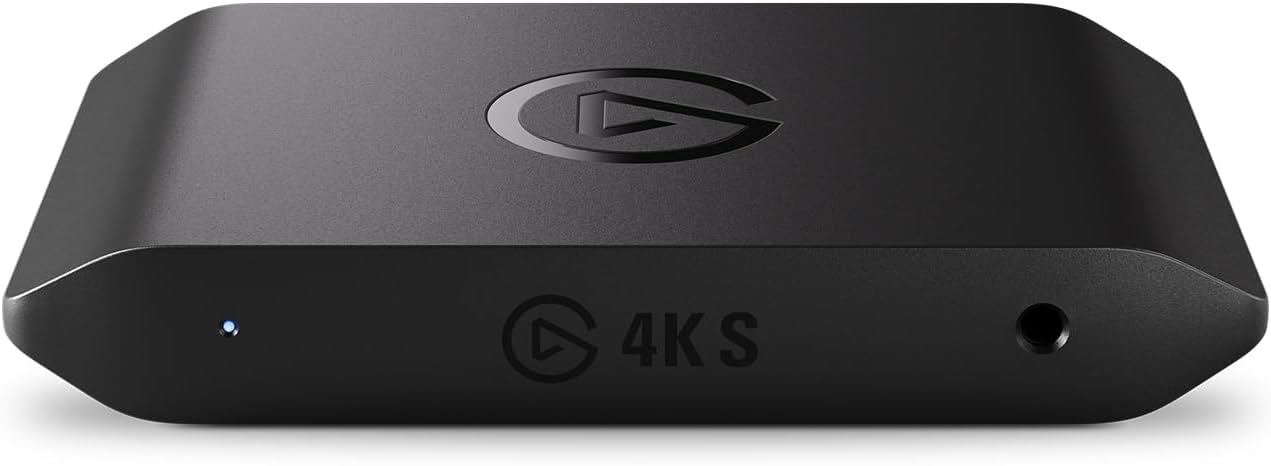
The ability to work with several resolutions is what sets it apart. With the 4K S, you can capture and play back 4K60, 1440p120, and 1080p240, so you can choose the perfect setting for any streaming experience, be it a languid role-playing game or a lightning-fast competitive first-person shooter. All current console video will always look its best thanks to the built-in HDR10 and VRR compatibility. Because of its natural compatibility with Mac and iPad, the USB-C port is the preferred choice of Apple ecosystem developers. Your on-screen monitoring remains flawless thanks to nearly zero capture latency.
The constraint? No 4K120 passthrough available; only HDMI 2.0.broadcasters who frequently switch between different types of games, Mac developers, PS5 and Switch 2 users. Forget with 4K144-chasing PC-only systems.
2: EVGA XR1 Pro

The XR1 Pro is the passthrough you’ve been looking for if you want something that can handle next-gen output. The display receives the exact signal from the console in the form of true 4K60 HDR or 1440p144 HDR passthrough. Capture is also top-notch; for broadcast-quality video, shoot at 1440p60; for cinematic snippets, reduce the resolution to 4K30. USB 3.1 manages the data transfer rate without frame loss.
The integrated audio mixer allows you to quickly adjust the volume of the game, chat, and microphone. During streaming, the ARGB lighting appears crisp. Tested and approved by OBS, it works with Switch, Xbox Series X, and PS5.The constraint? No 4K60 recording is possible; the maximum resolution is 1440p60. Since EVGA is no longer producing new cards, supplies are low.
1: Elgato 4K Pro

You can think of this card as an internal PCIe Gen 3 x4 that resides in your computer and receives data from your motherboard. There is no USB barrier. Outside box clutter is absent. Nothing but raw, uncompressed throughput, which is technically impossible for external GPUs to do.This camera is broadcast-ready right out of the box in 4K60 HDR10. All of the frames from your PS5, Xbox Series X, or Switch 2 will make it to your display thanks to the 8K60 passthrough over HDMI 2.1 with complete VRR.
Compatible with Elgato’s 4K Capture Utility and Open Broadcaster Software (OBS) natively. Created with two-screen gaming rigs in mind—no latency passthrough, no skimping.The catch? You need a PCIe slot—unfortunately, it’s only compatible with desktop computers and not laptops.Who should buy it? Serious dual-PC builds and professional streams. People who utilize laptops or like to dabble in hobbies on the side won’t like this.
Things to Consider Before Buying a CAPTURE CARDS FOR STREAMERS:
Streamers must evaluate multiple factors when selecting a capture card. Consider compatibility with your system, video quality, and input options to ensure smooth streaming. Budget constraints also play a role, so weigh your choices carefully to find the best match for your needs.
Resolution Support and Refresh Rate Compatibility
Assess the resolution support and refresh rates of the capture card. Higher resolutions enhance video quality, while a matching refresh rate ensures fluid gameplay. Compatibility with your gaming system is important for optimal performance.
Understanding Zero-Latency Pass-through
Comprehend what zero-latency pass-through means for your setup. This feature allows you to play games without any delay while streaming, ensuring an uninterrupted gaming experience. High-quality capture cards provide this capability, which is critical for competitive gaming.
Zero-latency pass-through allows you to maintain real-time gameplay while broadcasting. This is important when you need responsiveness to stay competitive. Without this feature, delays can impact your performance and viewers may notice lag in your stream. By choosing a capture card with reliable zero-latency pass-through, you ensure that your audience enjoys a smooth viewing experience while you perform at your best.
Performance Gains and Stream Stability
Dedicated capture hardware often provides superior performance due to its specialized design, reducing frame drops and lag during streaming. By offloading encoding tasks from your main PC, you can achieve a smoother experience for both you and your viewers.
Hardware Investment and Setup Complexity
Investing in dedicated capture hardware can be costly and may require technical knowledge for setup. You might face challenges integrating it with existing streaming software and hardware components.
Understanding the investment in dedicated capture hardware involves more than just the purchase price. Setup complexity can vary greatly, depending on your existing equipment and personal tech skills. If you’re not familiar with hardware configurations, consider seeking guidance or tutorials to simplify the integration process.
Physical Hardware Connection Procedures
Connect your capture card to the PC using the appropriate USB port or PCIe slot. Ensure the HDMI cable from your console is securely attached to the capture card for optimal signal transfer.
Software Integration with Popular Streaming Platforms
Install drivers and associated software for your capture card. Adjust settings in your preferred streaming platform to incorporate the capture device and ensure audio/video functionality.
Integrating with platforms like Twitch or YouTube involves downloading the latest drivers and software from the capture card manufacturer. After installation, select the capture card in your streaming software’s source settings, enabling you to broadcast content directly from your console or device.
Ensuring Cable Quality and Signal Integrity
Choosing high-quality cables significantly impacts your broadcast. Poor cables can lead to signal loss and degraded video quality. Look for cables that are well-shielded and suitable for your specific setup to maintain strong connections.
Troubleshooting Audio and Video Sync Issues
Sync issues can disrupt the viewing experience. Ensure your audio settings match the capture card’s output. Adjusting the audio delay in your streaming software can also help align the video and audio seamlessly.
To troubleshoot audio and video sync issues effectively, start by checking the settings of both your capture card and streaming software. Make sure the frame rate and sample rate are consistent. Use audio delay adjustments to fine-tune synchronization. Running tests before going live can also help identify any potential lag. Making these adjustments enhances the viewing experience for your audience.
Final Words
Following this guide will help you make an informed decision when purchasing a capture card for streaming. Consider factors like compatibility, resolution, and your streaming needs to ensure you select the right device. Assessing your budget and potential upgrades will also influence your choice for optimal performance.
Leave a Reply