
Finding the best drawing tablet is often tough when you are facing endless options and high prices. You deserve a responsive stylus that feels natural so your digital art flows without any lag. Stop letting tech stress stall your creative workflow. We reviewed the top tools to ensure your next masterpiece is a breathtaking reality. Let’s find the perfect device for your studio.
Contents
- Top 7 Drawing Tablet:
- 7: Wacom Intuos Small
- 6: XPPen Deco 01 V3
- 5: HUION Kamvas 13 (Gen 3)
- 4: XPPen Artist 15.6 Pro
- 3: Wacom One 14
- 2: HUION Kamvas Pro 16
- 1: Wacom Cintiq 16
- Pen Displays and High-End Monitors
- Standalone Portable Tablets
- Benefits of Versatility and Efficiency
- Challenges of Learning Curves and Cost
- Ergonomic Workspace Optimization
- Driver Installation and Software Compatibility
- Identifying Your Skill Level and Goals
- Matching Hardware Specs to Your Budget
- Researching Warranty and Long-Term Support
- Summing up
Top 7 Drawing Tablet:
7: Wacom Intuos Small
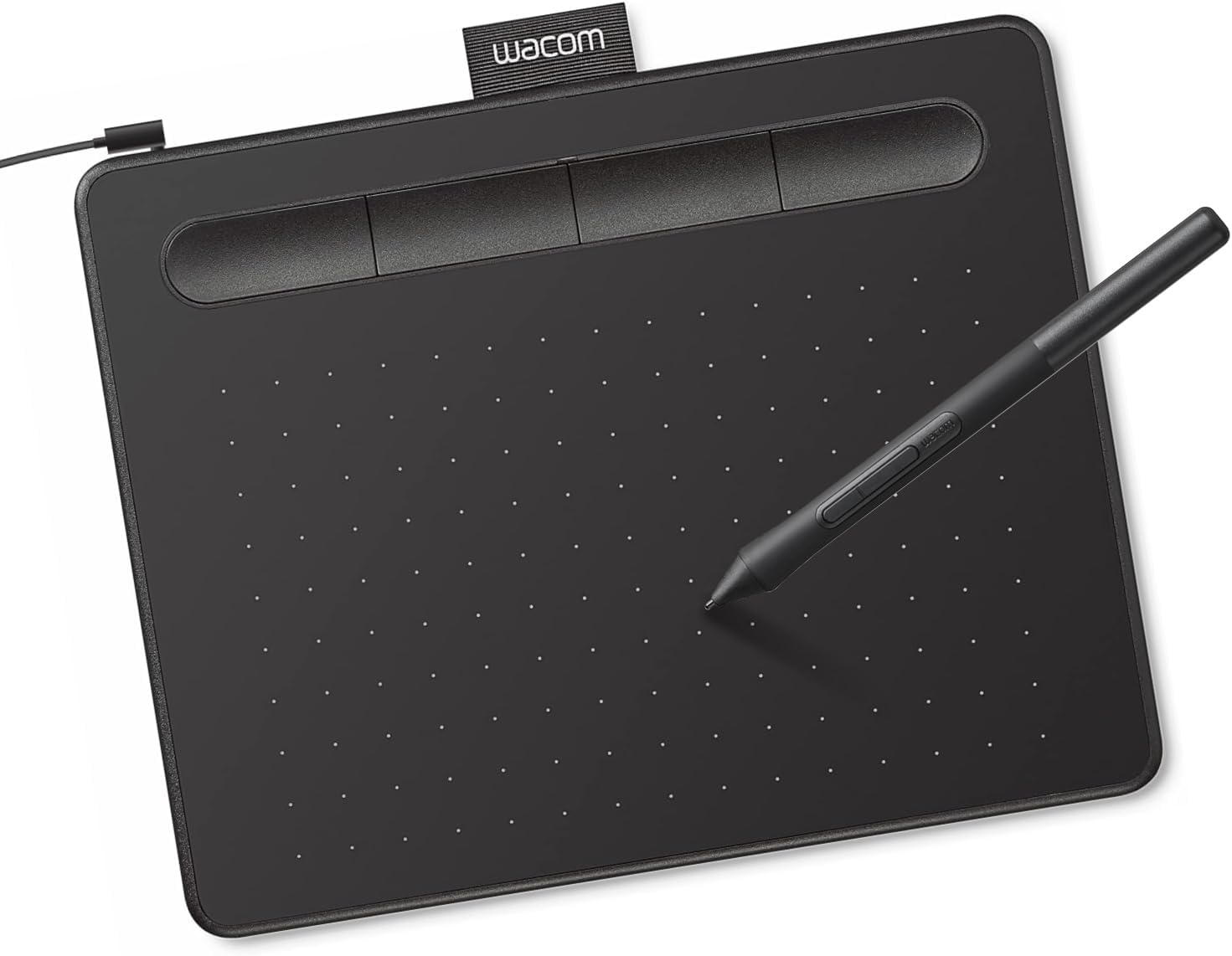
The most affordable and risk-free way to start digitally drawing is with the Wacom Intuos Small.Using a mouse to draw is completely different from drawing by hand. This is immediately addressed by the Intuos Small.Original, professional-grade pen-on-tablet artwork from the trusted brand.Start with a battery-free EMR pen that has 4,096 different pressure levels. As smooth as a thousandth of a millisecond’s stroke, with no charge or latency whatsoever.
Four ExpressKeys—one each for undo, zoom, and brush size—will follow. Maintain your concentration without using the keyboard.Lastly, we have the included creative software, which includes Boris FX Optics and Clip Studio Paint Pro. Important beyond the tablet’s intrinsic value.Downside: less pressure levels (4,096) and a smaller active area (6 x 3.7 inches), USB-A only.Useful for: those just starting out in the world of digital art who are looking to find their footing. Avoid: if you’re looking for a screen.
6: XPPen Deco 01 V3

When you’re ready to take your pen tablet gaming to the next level, go no farther than the XPPen Deco 01 V3.The 6-inch space you get with ultra-budget tablets will be gone in a matter of weeks. It is almost three times as much in the Deco 01 V3.Best value for money if you’re just starting out and want to draw, not only practice.Longer strokes and more fluid arm movement are the first benefits of the 10-by-6.25-inch work space.
Following that, we have an X3 stylus—pro pen technology in a budget body—with 16,384 pressure levels and a 60-degree tilt.At last, 8 shortcut keys that you may personalize and USB-C, which means that modern computers don’t require an adaptor.The drawback is that you won’t find any included software, there isn’t a scroll wheel, and sometimes you have to reinstall drivers after Windows upgrades.Who it’s best for: newcomers who are willing to put in the time and effort. Avoid if you’re looking for Wacom polish.
5: HUION Kamvas 13 (Gen 3)

As far as pen displays go in 2026, the most affordable option is the HUION Kamvas 13 Gen 3.If your pen tablet doesn’t have a screen, you’ll have to keep your eyes fixed on the screen the whole time you use it. A lot of time is wasted by beginners trying to overcome that disconnect between their hands and eyes.Now it’s over with the Kamvas 13; from now on, you can sketch precisely where your eyes land.To begin, there is a 13.3-inch fully laminated screen that supports 99% sRGB, so both the canvas and the exported images have accurate color reproduction.
Coming up next: PenTech 4.0, which has 16,384 pressure levels, is great for learning shading since it catches the gentle hatching lines that beginners need.Finally, a pen with genuine bite thanks to anti-sparkle canvas glass 2.0, which has a paper-like texture and eliminates glare.However, there is no integrated stand, drivers may act strangely with macOS updates, and the screen will seem cramped when you’ve outgrown it.Ideal for: those just starting out with pen displays. Keep away from animators who require a larger canvas.
4: XPPen Artist 15.6 Pro

The XPPen Artist 15.6 Pro is an excellent choice for serious novices looking for a mid-range pen display.Canvas quickly fills up on a 13-inch screen. Every zoom-out is a waste of time, and the brush strokes feel confined.You get 15.6 inches of canvas with the Artist 15.6 Pro, which is a significant increase in real estate without going into premium territory.First, there’s the 15.6-inch full-laminated IPS display that comes with 120% sRGB, meaning it has vibrant and realistic colors right out of the box.
Then, a red dial wheel for zooming and brush size adjustments, eight shortcut keys that may be customized, and last, the feature.At long last, a stylus with 8,192 pressure points, a 60-degree tilt, and no charging required—a true battery-free alternative.Only 1080p is available, even though 2K is showing up, and the anti-glare coating makes the screen shimmer when held directly in the light.Ideal for: complete art novices making their first digital painting. Do not use if you are an animator seeking 4K or a colorist requiring Adobe RGB.
3: Wacom One 14

The most affordable entry-level Wacom pen display is the One 14.The underlying friction of non-Wacom displays can be found in driver modifications, software workarounds, and the rituals of pairing before each session. That ache is gone with the Wacom One.No driver conflicts, compatibility issues, or setup hassles with Wacom sketching on day one.A 14-inch Full HD full-laminated IPS screen with 98% sRGB, a paper-like texture, and no glare is the first thing to mention.
Here we go: an EMR pen that doesn’t need batteries—the same technology as Cintiq—but without the charge, jitter, or compromise.One USB-C connector transmits all three signals—power, video, and pen data—at last.The hitch is that some computers require USB-C DP Alt Mode, there are no shortcut keys on the body, and there are only 4,096 pressure levels.Those looking to join the Wacom ecosystem but not commit to Cintiq may consider this option. Those who require a length of more than 14 inches should not purchase this.
2: HUION Kamvas Pro 16
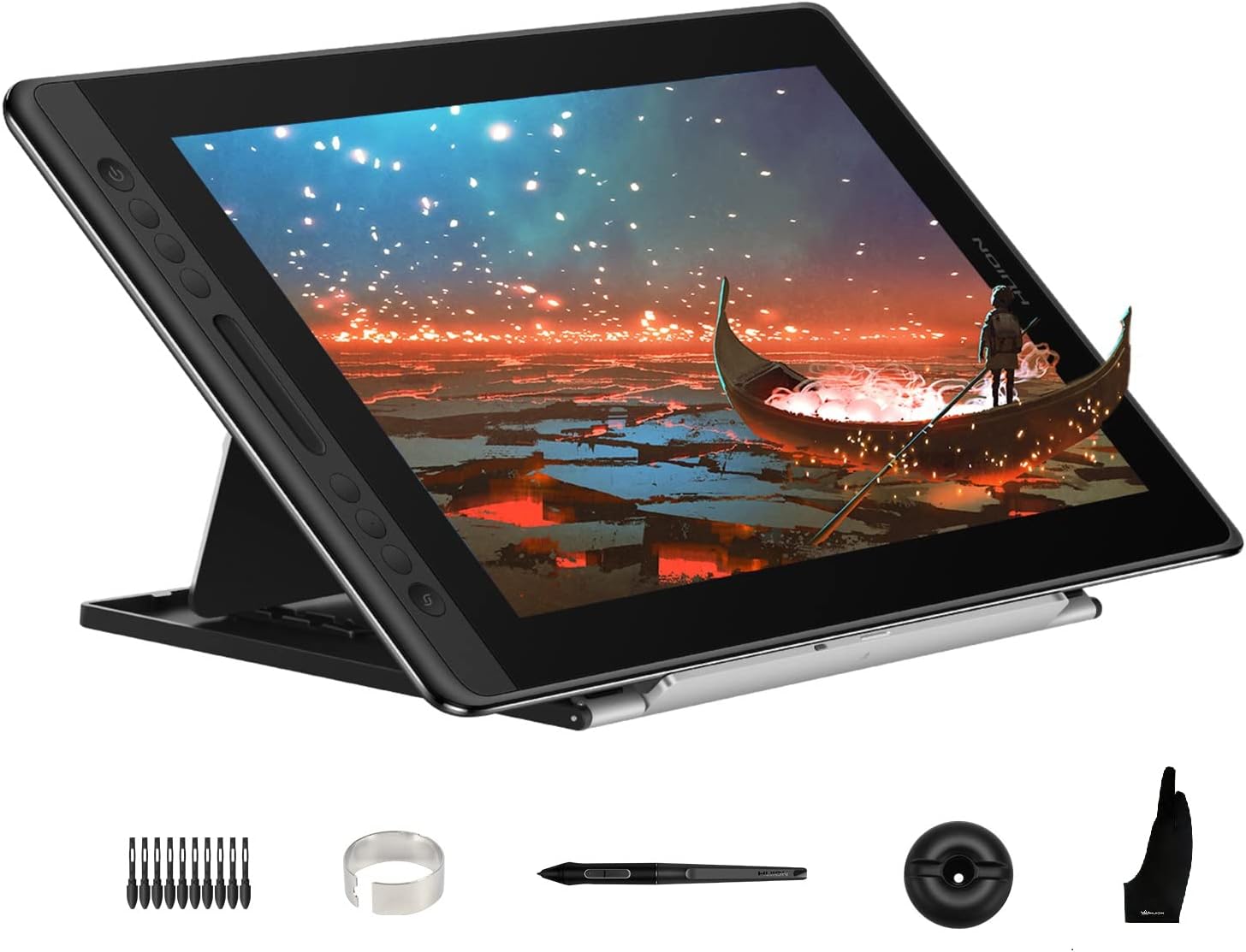
Introducing the HUION Kamvas Pro 16, the pinnacle of premium pen displays that won’t break the bank.Here, you’ll only find quality pen displays from one brand. This includes the drivers, software, pen tech, and the entire ecosystem.The Kamvas Pro 16 has professional-level features without making you be dedicated to them.The 15.6-inch tablet has the greatest color range of any tablet here, with 120% sRGB and 92% Adobe RGB. It features a fully laminated IPS display.
Second, paper-like anti-glare etched glass reduces reflections that degrade shaded gradients on glossier displays.Finally, the PW507 is a battery-free stylus that comes with 8,192 pressure levels, tilt, 6 express keys, and a touch bar.One catch: the adjustable stand is supplied separately. Additionally, there is no built-in pen holder and drivers often need to be reinstalled following Windows updates.Apt for: dedicated newbies who wish to experiment with pro color but don’t want to commit to a single environment. Avoid: if you’re a die-hard Wacom fan.
1: Wacom Cintiq 16

Tablets are the foundation upon which professions are built.Frame skipping mid-stroke, jitter on diagonal lines, and pressure drop-outs hours into a deadline are driver sacrifices that come with every cheaper pen display. It is not the case for Wacom.On the Cintiq 16, the software side disappears entirely.To start, it has a 16-inch Full HD IPS screen that is 100% sRGB, so all of the colors you mix will appear exactly as they do on the client’s screen.
Up next: the Pro Pen 3, the crown jewel of Wacom’s battery-free stylus lineup, with tilt, interchangeable grips, and weight adjustment.A driver support system that remains stable even after Windows and macOS updates is now here.There is a catch, though: you have to pay extra for the Wacom name on top of the hardware, and there is no built-in stand or body shortcut keys.If you’re a newbie or a freelancer looking to create a client list, this tablet is a great investment. It will last you years. It is not suitable for individuals who are currently undergoing digital testing.
Things to Consider Before Buying a Drawing Tablet:
Graphics tablets without screens are input devices that connect to your computer. You draw on the tablet surface, while the results appear on the screen. These tablets are often more affordable and lightweight, making them a popular option for many artists and designers.
Pen Displays and High-End Monitors
Pen displays combine a graphics tablet with a screen, allowing you to draw directly on the display. These devices offer a more intuitive experience and typically provide better color accuracy and sensitivity, making them ideal for professional artists and illustrators.
Investing in pen displays can significantly enhance your artistic workflow. They provide an immersive experience that closely mimics traditional drawing techniques. The ability to see your work directly beneath your hand reduces the disconnect felt when using a standard tablet, leading to greater precision and efficiency in your creations.
Standalone Portable Tablets
Standalone portable tablets function independently without the need for a separate computer. These devices often come equipped with their own software and features, appealing to artists who prefer to sketch on the go.
Utilizing standalone portable tablets provides flexibility and convenience, perfect for creative professionals constantly on the move. They often feature long battery life, allowing for hours of uninterrupted drawing. With built-in capabilities, these tablets can store files and run applications, bringing the studio experience into any setting.
Benefits of Versatility and Efficiency
Digital tablets offer exceptional versatility, allowing you to explore various styles and techniques effortlessly. The efficiency of instant edits and the ability to save multiple versions save you time and enhance your creative process significantly.
Challenges of Learning Curves and Cost
While digital drawing tablets provide numerous advantages, they often come with a steep learning curve and significant upfront costs, which can be daunting for beginners.
Investing in a drawing tablet entails not just the hardware but also the software, which may require additional purchases. These costs can accumulate quickly, particularly when factoring in the subscription models for some programs. Mastering the features of your new device might take time and effort, necessitating tutorials or courses for optimal use.
Ergonomic Workspace Optimization
Creating an ergonomic workspace can reduce strain during long drawing sessions. Position your tablet at a comfortable angle and maintain proper posture to prevent discomfort. Use a supportive chair and a height-adjustable desk to achieve the best results.
Driver Installation and Software Compatibility
Checking driver compatibility ensures your tablet functions smoothly. Always download the latest drivers from the manufacturer’s website and verify software requirements for your preferred drawing applications. This step helps avoid performance issues and enhances user experience.
Compatibility is fundamental for achieving the best performance from your drawing tablet. Different software may require unique drivers or settings. Conducting thorough research before installation saves time and frustration later. Always confirm that your operating system supports the latest software, and follow installation instructions carefully for a hassle-free setup.
Identifying Your Skill Level and Goals
Evaluate your current drawing skills and set clear goals for what you want to accomplish. Whether you’re a beginner looking to practice or a professional aiming to enhance your workflow, understanding your level will guide your choice effectively.
Matching Hardware Specs to Your Budget
Consider the imperative features of a drawing tablet and how they match your financial limits. Prioritize specifications that enhance your experience without overspending.
Budgeting ensures that you don’t compromise on necessary features like pressure sensitivity, screen quality, and responsiveness. Carefully research options within your price range to find a tablet that meets your demands without exceeding financial constraints.
Researching Warranty and Long-Term Support
Investigate warranty details and support services offered by the manufacturer. A strong warranty provides peace of mind, ensuring you’re covered against defects or issues over time.
Long-term support from the manufacturer can significantly impact your experience. Responsive customer service and regular software updates enhance usability and longevity, making your investment more worthwhile. Always consider these factors when making your choice.
Summing up
The decision to buy a drawing tablet requires careful consideration of key factors like size, pressure sensitivity, and software compatibility. Evaluate your specific artistic needs, budget, and intended use to choose a tablet that best supports your creative process. A well-informed choice can significantly enhance your drawing experience.
Leave a Reply