
Finding the best external graphics cards can instantly save your laptop from sluggish performance. Stop suffering through choppy frame rates that ruin your favorite games. An eGPU connects via Thunderbolt to transform your basic computer into a total gaming beast. Whether you crave buttery-smooth visuals or faster video rendering, our guide reveals the top picks to supercharge your setup today. Ready to unlock incredible power? Let’s look at the top contenders.
Contents
- Top 5 External Graphics Cards:
- 1. ASUS ROG XG Mobile External Graphics Card
- 2. Razer Core X V2 External Graphics Enclosure
- 3. Sonnet eGFX Breakaway Box 650
- 4. OneXGPU External GPU
- 5. Razer Core X Aluminum External GPU Enclosure
- Things to Consider Before Buying a External Graphics Card:
- Thunderbolt Graphics Cards
- USB Graphics Adapters
- Compatibility with Laptop/PC
- Performance Requirements
- Advantages
- Disadvantages
- Researching Brands and Models
- Proper Setup
- Regular Maintenance
- Common concerns
- To wrap up
Top 5 External Graphics Cards:
1. ASUS ROG XG Mobile External Graphics Card

The ASUS ROG XG Mobile is designed to transform your compatible laptop into a powerful gaming and creative workstation, offering desktop-class graphics capability with the convenience of portability. Powerful AAA games, accelerated creative apps, and improved high-resolution workflows are all within your reach with this laptop’s NVIDIA GeForce RTX 5070 Ti GPU and GDDR7 VRAM.
A significant improvement is the connectivity. You can set up a tidy workstation with plenty of room for timelines, tools, and gaming thanks to the 120Gbps throughput and Thunderbolt 5 connection, which provides the bandwidth required for high-performance external graphics. It also supports 8K video workflows and multi-display setups, allowing for up to three 4K displays at 144Hz simultaneously.
What distinguishes it from cumbersome eGPU boxes is its portability. Instead of being confined to a tower at home, you can bring true GPU performance with you thanks to its tiny size and lightweight design (around 2.09 lbs).Stability over extended sessions also relies heavily on cooling. Improved cooling performance and reduced noise are the results of a redesigned vapor chamber and ultra-thin fins, making this a great choice for late-night gaming or editing in a less noisy environment.If you’re looking for a powerful external GPU that’s also portable, has lightning-fast Thunderbolt 5 connectivity, and offers top-tier performance, it’s a solid pick.
2. Razer Core X V2 External Graphics Enclosure

Transform any compatible laptop or portable into a powerful gaming or creative rig with the Razer Core X V2, a versatile eGPU container that can handle newer GPUs and speedier laptop connections. You may choose the GPU performance level you truly need because it is NVIDIA and AMD desktop GPU ready and has space for PCIe desktop graphics cards up to 4 slots wide.
With Thunderbolt 5 and speeds of up to 80 Gbps, it’s a significant improvement over prior eGPU connections, making it ideal for resource-intensive creative applications and AAA games. You may use one enclosure for many devices because it is designed to be compatible with a wider range of devices. It works with Thunderbolt 5 and Thunderbolt 4 laptops, as well as USB4 gaming handhelds that enable external graphics.
This setup is designed to be easy. Perfect for those who demand desktop performance at their workstation but still want a thin and light device for travel, you can attach it using the provided Thunderbolt 5 cable when you need extra graphics power and detach it when you’re done.
Another perk is the ability to upgrade in the future. With the Core X V2’s tool-free installation using thumbscrews and support for modular GPU and ATX PSU swaps, upgrades are a breeze. Maintaining performance under demanding conditions is made easier with an active cooling system and a ventilated steel chassis.
3. Sonnet eGFX Breakaway Box 650

The Sonnet eGFX Breakaway Box 650 is an external GPU enclosure that can transform a Thunderbolt-ready system into a more powerful gaming or creative workstation. It is a dependable solution to add desktop-class graphics capabilities to a compatible laptop. If you want to run graphics-intensive applications like video editing, 3D work, or high-end gaming smoothly, you can connect an external full desktop GPU instead of relying on your computer’s integrated graphics.
When connected to a current graphics card, this enclosure will send video to a display via the card’s built-in ports, which may be DisplayPort or Mini DisplayPort. It works well with newer games and high-resolution workflows that require GDDR6 memory, which is available on AMD graphics cards.
For optimal results with an eGPU arrangement, it’s recommended to utilize a Thunderbolt-compatible laptop and a GPU that matches the specifications of the enclosure in terms of power and size. Once linked, it functions similarly to a graphics “dock”; leave it plugged in at your desk for when you need more power, and pull it out when you want more freedom.
If you’re looking for a reputable eGPU enclosure that offers a simple way to improve graphics performance, the Breakaway Box 650 is a good pick. This is particularly true if you already have a desktop AMD GPU with DisplayPort output in mind.
4. OneXGPU External GPU

With its integrated AMD Radeon RX 7600M XT, the OneXGPU External GPU provides a convenient and all-in-one option for those who desire a portable eGPU that may enhance their laptop or handheld without the need for a separate desktop graphics card. Its 8 GB of VRAM is engineered to provide a noticeable improvement in creative and gaming performance, allowing you to execute quicker GPU-accelerated workloads, higher settings, and smoother frame rates compared to integrated graphics.
Convenience is the main benefit. You can avoid the typical eGPU “build” procedure and obtain a more streamlined, portable configuration as the GPU is already housed in the enclosure. At just 1.92 lb, it’s lightweight enough to throw into a bag when you need more graphics power away from your computer, and its aluminum alloy body makes it stylish and robust.
With support for outputs like DisplayPort and HDMI, connectivity is designed to fit modern settings. This allows you to control an external monitor directly for a more desktop-like experience. Once attached, it functions similarly to a graphics dock; plug it in for increased performance and remove it for reduced weight.
When it comes to performance, the RX 7600M XT is frequently compared to an RTX 4060 laptop. This makes it a solid upgrade for 1080p and 1440p gaming, content creation, and general jobs that require a lot of GPU power.When looking for a small, prebuilt external GPU that strikes a good mix between actual performance and actual portability, it’s a good choice.
5. Razer Core X Aluminum External GPU Enclosure
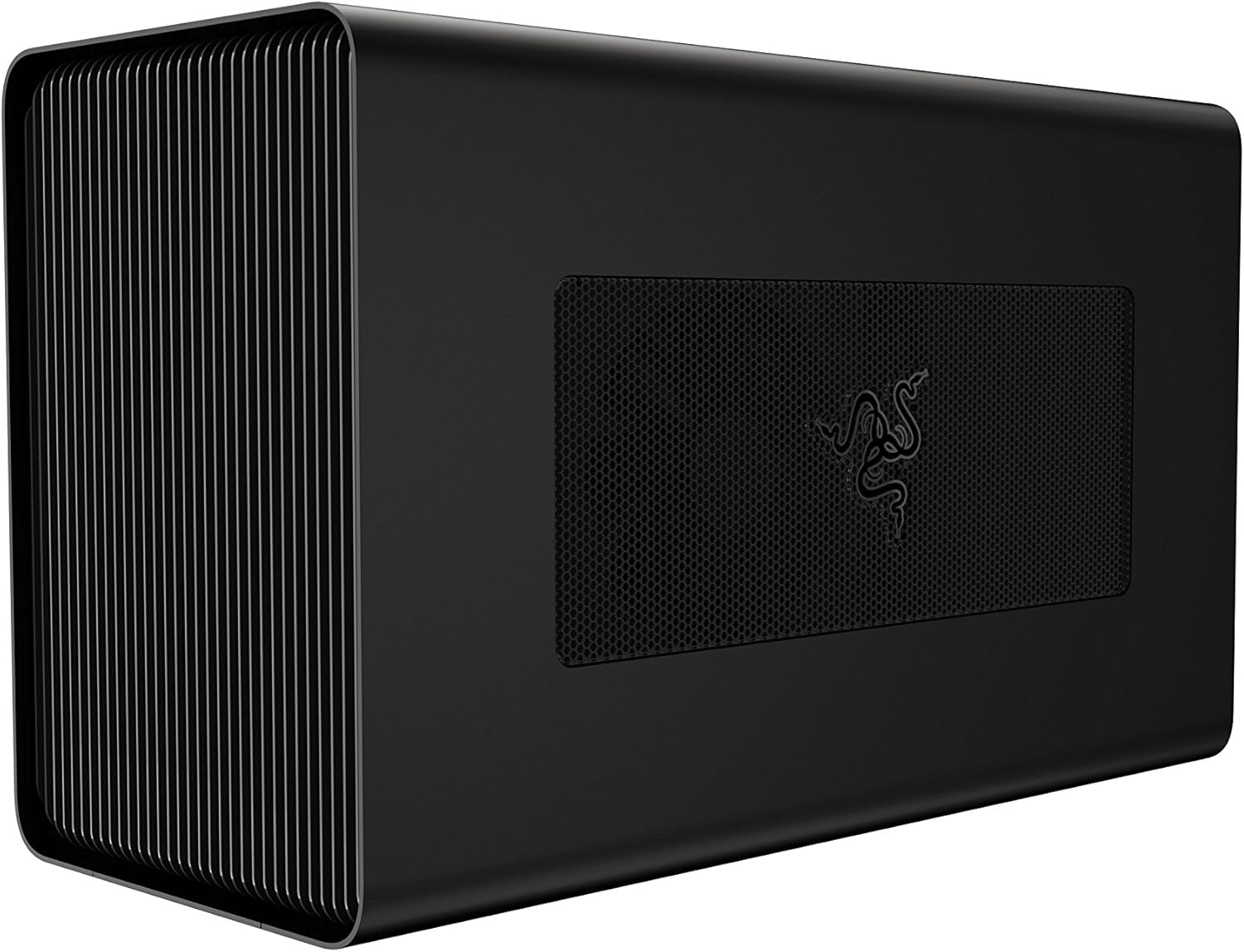
The Razer Core X provides an easy method to add powerful GPU capability with an external graphics solution, making your Thunderbolt 3 laptop feel more like a desktop for tasks such as gaming, editing, or 3D work. You can install a full-size PCIe desktop graphics card—including models with up to three slots wide—instead of relying on your laptop’s built-in graphics. This way, you can choose the level of performance you truly need and increase it later without having to replace your entire computer.
The purpose of the enclosure is to maintain a dependable and sanitary setup. To power your graphics card, it comes with a 650W ATX power supply. Using the same Thunderbolt 3 cable, it can also charge your laptop up to 100W. You can simplify your cable management, enjoy seamless docking at your desk, and enjoy seamless unplugging wherever you go—all thanks to a single connection that can handle graphics performance and power.
Checking for compatibility should be your top priority before making a purchase. For Windows, your laptop has to have Thunderbolt 3 eGPU capabilities. For the Core X, you’ll need an NVIDIA or AMD graphics card that is compatible, as well as RS45 or a later version. The anticipated performance gain will not be achieved unless your system supports eGPU over Thunderbolt 3.In sum, the Core X is an excellent pick if you’re looking to update your laptop experience without being tied down to a new machine, have access to desktop-grade graphics flexibility, and enjoy a solid aluminum chassis.
Things to Consider Before Buying a External Graphics Card:
Graphics performance and compatibility determine whether an external graphics card will meet your needs, so you should evaluate your system’s port and bandwidth support (Thunderbolt/PCIe), power and cooling requirements, physical size, driver and OS compatibility, expected gaming or creative workloads, and budget versus performance trade-offs before committing to a model.
Thunderbolt Graphics Cards
You can pair a laptop with a Thunderbolt 3/4 eGPU enclosure to run desktop GPUs (RTX 30/40 series or AMD equivalents); TB3/TB4 provides up to 40 Gbps through a PCIe x4 link, so expect some performance loss versus internal x16 PCIe, yet many games still run at high settings. Examples like the Razer Core X or Sonnet Breakaway Box supply additional power and cooling, while macOS systems often work best with AMD cards and specific driver support.
USB Graphics Adapters
You’ll find USB adapters based on DisplayLink chips or simple USB‑to‑HDMI dongles for adding monitors; typical USB 3.0 bandwidth (~5 Gbps) supports productivity tasks and multi‑monitor setups but adds CPU overhead and isn’t suited for fast 3D gaming. Popular models handle HD and some 4K setups, and driver support determines performance and compatibility across Windows, macOS, and Linux.
You should check driver maturity and OS support before buying a USB graphics adapter: DisplayLink requires vendor drivers that have improved over the years but can still add latency and CPU load, especially on video‑intensive tasks. Some dual‑display adapters achieve dual 4K@60 with modern chips and USB 3.1 hosts, while cheaper USB‑to‑HDMI sticks often cap at 1080p or 30Hz; verify your workload and host CPU/GPU before relying on USB solutions. The
Compatibility with Laptop/PC
You need a compatible port (Thunderbolt 3/4 is the common eGPU bridge at 40 Gbps) and BIOS/firmware that allows external devices; some older laptops use vendor whitelists. Verify physical ports, power delivery (some TB3 ports supply up to 100W), and OS support-Windows 10/11 broadly supports eGPUs, macOS officially supported AMD eGPUs on Intel Macs (High Sierra onward) while Apple Silicon lacks eGPU support. Consider tested enclosures like Razer Core X or Akitio Node and check GPU clearance specs before buying.
Performance Requirements
You should match GPU choice to your resolution and frame-rate goals: RTX 3060/4060 often suffices for 1080p high, RTX 3070/4070 for 1440p high, and RTX 3080/4080 for smooth 4K60. Factor VRAM-8GB is minimum for modern 1440p, 10-12GB+ for consistent 4K performance-and expect Thunderbolt tunneling to trim real-world frame-rates by roughly 10-30% depending on the title.
Beyond raw GPU spec, check CPU and PCIe lane limits since eGPUs over TB3 behave like PCIe 3.0 x4 (~4 GB/s) versus desktop x16 (~16 GB/s); that bandwidth gap plus CPU bottlenecks causes higher penalties in CPU-bound or data-heavy apps, while purely GPU-bound games see smaller losses. Also plan for GPU power draw (200-350W for high-end cards) and ensure the enclosure PSU and cooling match sustained loads.
Advantages
You gain access to higher CUDA/RTX performance and smoother 4K editing without buying a desktop: plugging an RTX 30-series into a Thunderbolt 3 eGPU box can let you run VR and GPU-accelerated renders at near-desktop speeds, typically within 10-20% of a desktop benchmark, while offloading heat from your laptop and giving you an upgrade path as GPUs improve.
Disadvantages
You face bandwidth and compatibility limits that reduce peak performance: Thunderbolt’s ~40 Gbps link and PCIe tunneling create a bottleneck, many enclosures impose PSU/wattage caps, and drivers or BIOS restrictions can prevent eGPU recognition-factors that can mean lower FPS or inconsistent behavior compared with the same GPU in a desktop.
For example, Thunderbolt 3’s effective bandwidth (~4-5 GB/s) often maps to a PCIe x4 Gen3 lane, so you’ll commonly see 10-20% lower frame rates in GPU-bound titles; budget enclosures may only supply ~300W, excluding high-end GPUs or requiring external power; and macOS users should note Apple Silicon lacks eGPU support while many recent macOS versions dropped Nvidia eGPU compatibility, limiting platform choices.
Researching Brands and Models
Start with objective benchmarks for your target resolution-an RTX 3060 often delivers ~60-120 FPS at 1080p depending on title, while an RTX 4070 targets 1440p at 60-120 FPS; expect a 10-30% throughput loss over Thunderbolt 3 compared to desktop PCIe. Check driver support from NVIDIA/AMD, read forum reports on stability for your specific laptop model, and prioritize cards with proven thermal headroom and lower power draw if your enclosure PSU is limited.
When diving deeper, use sources like TechPowerUp, GamersNexus, and eGPU.io for synthetic and real-game comparisons; inspect power draw (TDP), VRAM size (6-12GB vs 8-16GB), and manufacturer cooler designs-blower-style may be quieter in enclosures. Also verify firmware/BIOS notes from enclosure makers (Razer, Sonnet, Akitio) and confirm return policies so you can swap if a particular GPU shows driver quirks on your setup.
Proper Setup
Connect the enclosure directly to a laptop or PC Thunderbolt 3/4 port (avoid chaining through passive hubs that can cut bandwidth), plug external monitors into the eGPU outputs when possible, and set your OS to prefer the discrete GPU for demanding apps; in Windows, choose the GPU per-app in Graphics Settings and enable High Performance power plans, while on many systems disabling the integrated GPU in BIOS/UEFI can reduce conflicts and latency.
Regular Maintenance
Schedule driver and firmware checks every 2-4 weeks, clean dust from fans and heatsinks every 3-6 months, and verify fan curves and thermal paste condition annually if you push the card hard; keeping vents clear and firmware current avoids throttling and random disconnections.
In practice, simple maintenance yields measurable gains: users often report 5-12°C lower GPU temps after removing dust and reseating fans, which can translate to 3-8% sustained performance improvements by avoiding thermal throttling; track temps during a 30-60 minute stress test, log PSU voltages if available, and replace thermal paste every 2-3 years for cards with heavy daily use to maintain peak stability.
Common concerns
You should check your laptop’s port: Thunderbolt 3/4 offers up to 40 Gbps (roughly PCIe 3.0 x4), so expect a 10-30% GPU performance drop depending on game and resolution. If you run Windows 10/11 you’ll get broad eGPU support; macOS supports AMD eGPUs on Intel Macs (Apple Silicon lacks eGPU). Also verify enclosure PSU (Razer Core X uses 650W), physical GPU clearance, and BIOS/device whitelist on some OEM laptops to avoid compatibility surprises.
To wrap up
The final decision to buy an external graphics card should prompt you to weigh compatibility with your laptop or PC, available bandwidth (Thunderbolt/USB standard), power delivery and cooling, physical size and portability, driver and OS support, warranty and upgradeability, and total cost versus the performance gains you need.
Leave a Reply