
Finding the best touchscreen laptops shouldn’t feel like a frustrating chore. Are you tired of juggling a tablet for projects and a bulky PC for work? You deserve a gorgeous 4K display and versatile performance that boosts your daily hustle. Imagine the incredible freedom of a seamless workflow that ignites pure joy with every swipe. We’ve rigorously tested the top models to help you select your ideal companion. Let’s dive into the results.
Contents
- Top 5 Touchscreen Laptops:
- 1. Microsoft Surface Pro – Best Touchscreen Laptop Overall
- 2. Samsung Galaxy Book5 360 – Best Touchscreen Laptop for Entertainment & Everyday Use
- 3. Dell Inspiron 15-Inch – Best Touchscreen Laptop for Work & School
- 4. Lenovo IdeaPad 15 – Best Touchscreen Laptop for Multitasking & Huge Storage
- 5. Lenovo Flex 5 – Best Budget Touchscreen Laptop
- Things to Consider Before Buying a Touchscreen Laptop:
- 2-in-1 Laptops
- Traditional Touchscreen Laptops
- Display Quality
- Performance Specifications
- Advantages
- Determine Your Needs
- Research Options
- Test Before You Buy
- Cleaning the Screen
- Software Updates
- Summing up
Top 5 Touchscreen Laptops:
1. Microsoft Surface Pro – Best Touchscreen Laptop Overall

The Microsoft Surface Pro is designed to fulfill your needs for a truly next-gen touchscreen laptop, whether you’re working, creating, or just going about your daily life. Copilot+ PCs with Windows 11 are built with AI-enhanced features that prioritize security and privacy, allowing your device to seem smarter without being obtrusive, allowing you to be productive.
Because of how much time you’ll be staring at it, the 13-inch OLED touch screen will be a welcome distraction. With a 1,000,000:1 contrast ratio, colors stand out stronger, blacks look deeper, and details and vibrancy are enhanced in everything from streaming to picture editing—even while you’re on the move.
The “overall” designation is truly earned by Surface Pro in terms of performance. You can enjoy seamless multitasking and quicker handling of AI-assisted tasks with the strong NPU and Snapdragon X Plus or Snapdragon X Elite choices. Thanks to its improved efficiency, you can enjoy lengthy sessions without an outlet for up to 14 hours. And if you ever need a boost, a 65W converter via Surface Connect or USB-C allows you to get back up and running fast.
Storage is also rather ample. With a 1 terabyte solid-state drive (SSD), you won’t have to worry about running out of space for major projects, media files, and regular files.
In addition, the Studio Camera system, which is AI-enhanced and features HD front and rear cameras, allows you to appear more presentable on calls by enhancing the lighting and sound quality.
2. Samsung Galaxy Book5 360 – Best Touchscreen Laptop for Entertainment & Everyday Use

The Samsung Galaxy Book5 360 is a great choice if you’re looking for a touchscreen laptop that can handle all your daily tasks and enjoyment without the hassle of finding a charger. The tiny and lightweight design makes it easy to carry in a backpack or shoulder bag, and the up to 31 hours of battery life means you can stream, browse, study, and work through long days with fewer interruptions.
Thanks to the newest Intel Core Ultra 7 (Series 2) processor, performance remains quick, allowing you to effortlessly multitask, stream in high definition, and complete common creative work. Whether you’re using it for scrolling, tapping through applications, or anything more hands-on, the 15.6-inch touchscreen makes it feel more interactive.
Artificial Intelligence Select is one of the best features for regular use. When you need to find anything fast, whether it’s for research, shopping, or identification, you can just trace an image, text, or QR code on the screen with your finger or cursor and obtain search results swiftly.
Staying in the zone is easier with the Galaxy Book5 360 if you’re a heavy smartphone user. Without having to constantly switch devices, Phone Link allows you to take notes, reply to changes, and conduct calls by mirroring key notifications to your laptop in real time. And when you’re ready to transfer some files, Quick Share makes it easy and safe to do so between Galaxy devices.
3. Dell Inspiron 15-Inch – Best Touchscreen Laptop for Work & School
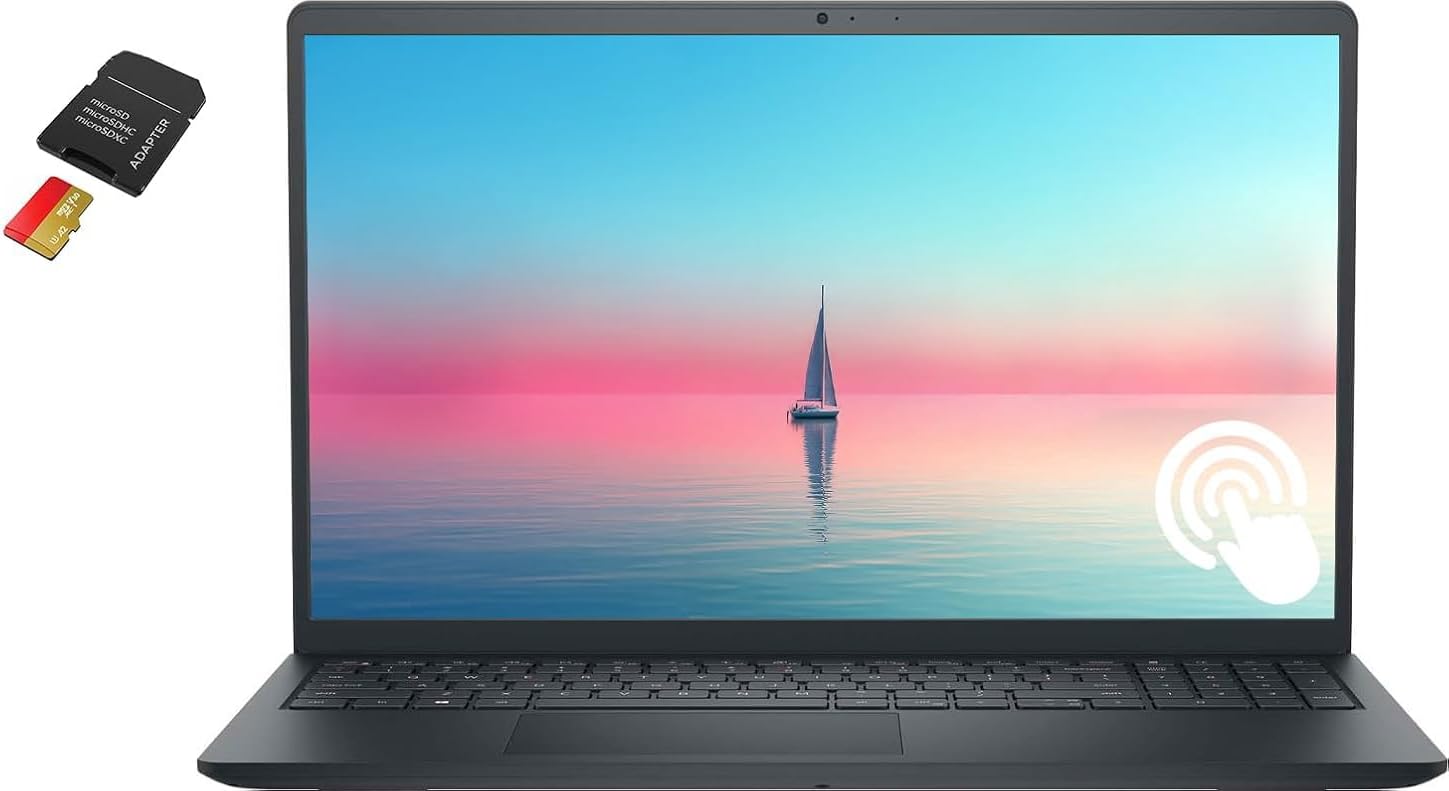
The Dell Inspiron 15-inch is an excellent choice if you need a touchscreen laptop that can withstand long periods of time spent working or studying as well as intensive multitasking. Everyday operations like research, writing, video conferencing, and running numerous apps feel responsive thanks to the Intel Core i5 processor, which has 10 cores and 12 threads and can surge up to 4.6GHz. Everything runs well for streaming and everyday productivity thanks to the integrated Intel UHD graphics.
When using web-based tools or reading lengthy documents, the 15-inch Full HD IPS touchscreen provides sharp text and excellent images. Useful for spreadsheets, essays, and browsing, the display’s aspect ratio also offers somewhat more vertical space, allowing you to see more text simultaneously while scrolling less.
Memory and storage are the Inspiron’s strong suits. With 64 GB of RAM, you can run many apps, browser tabs, and even video and photo editors simultaneously without experiencing any slowdown. Plus, you won’t need any external devices with the 2.5 terabytes of storage space available, so you can easily accommodate big folders, presentations, school assignments, and media files.
Everyday chores like working with budgets, data sheets, or bookkeeping are made easier with the built-in numeric keypad. When combined with Windows 11, it provides a contemporary, functional system that is ideal for work and school from the get-go.
4. Lenovo IdeaPad 15 – Best Touchscreen Laptop for Multitasking & Huge Storage

The Lenovo IdeaPad 15 is an excellent choice if you’re looking for a touchscreen laptop with enough of storage space and the ability to handle heavy everyday multitasking. You may operate numerous tabs, documents, and applications at once without experiencing any slowdown or sluggishness because to the Intel Core i5 processor, which has 10 cores and 12 threads and can boost up to 4.40GHz. As an added bonus, the integrated Intel Iris Xe graphics make streaming, light picture editing, and other common creative chores much easier on the eyes.
A more tactile experience is enhanced by the 15.6-inch touchscreen, which is great for short navigation on the go, tapping through applications, or scrolling through lengthy pages. The integrated numeric keypad is more convenient and faster than a small keyboard for data entry if you use spreadsheets, bills, or other tasks that include numbers.
This laptop shines out in terms of storage. With a big 2TB drive, you won’t have to worry about space management or bringing around other drives; you can store enormous project folders, images, videos, and loaded applications on it. If you have a small business, are a student, or deal with large amounts of work files, that is perfect for you.
A camera privacy shutter is also included, providing a simple yet comforting method to conceal the webcam when not in use. This IdeaPad is an excellent choice if you require a 15.6-inch laptop that can handle heavy workloads and ample storage.
5. Lenovo Flex 5 – Best Budget Touchscreen Laptop

The Lenovo Flex 5 is an excellent 2-in-1 option if you’re looking for a cheap touchscreen laptop that can switch between work, entertainment, and note-taking without being cumbersome. Carrying it to class, the office, or even the couch is a breeze because it remains lightweight at only 3.64 lbs and has a thickness of 0.82″. Feeling better in the hand than many budget laptops, thanks to its sturdy coating and soft-touch texture; plus, it comes with a digital pen for doodling, annotating, and handwritten notes.
Everyday tasks like scrolling, pinching, and touching are made easier with the 14-inch Full HD IPS touchscreen’s 10-point touch capability. With its sleek, contemporary design and generous screen-to-body ratio, this phone is perfect for those on the go.
Flexibility is what you’ll notice the most on a daily basis. With its 360-degree hinge, you may use it in a variety of modes: laptop for typing, tent for sharing in confined areas, stand for streaming, and tablet for direct touch control or pen input.
With a maximum runtime of 10 hours on a single charge and rapid charging capabilities that can reach 80% in approximately one hour, this device is designed for extended use. Whether you’re editing documents, multitasking, browsing with many tabs open, or performing light creative work, the 16GB of RAM and AMD Ryzen 5 4500U graphics make everything feel responsive.
Things to Consider Before Buying a Touchscreen Laptop:
Touchscreen laptops offer intuitive interaction, but you should weigh factors like display responsiveness, resolution and glare control, battery life, hinge durability and input options (pen support, palm rejection). Consider performance, portability and build quality relative to price, plus software and driver support for touch gestures, so you can choose a model that fits your workflow and longevity expectations.
2-in-1 Laptops
You get maximum flexibility with 2‑in‑1s: detachables like the Surface Pro 9 or convertibles such as the Yoga 9i switch between tablet and laptop modes, often weigh 1.1-1.5 kg, and support active pens with low latency (~9-15 ms on premium models). Many offer 8-12 hours battery life in mixed use, but thermal limits can reduce CPU/GPU headroom compared with larger clamshell designs.
Traditional Touchscreen Laptops
You’ll find fixed‑hinge touch laptops across sizes from 13.3″ to 17.3″, for example Dell XPS touch options and the ThinkPad X1 Carbon Touch. They typically provide better rigidity, improved cooling for sustained CPU performance, and more discrete GPU choices in 15″ models, while often costing less than equally spec’d convertibles.
For deeper detail, you can expect traditional touch models to offer higher configurability-CPU options up to Intel Core i9, GPU choices including NVIDIA GTX/RTX in 15-17″ variants, RAM from 8-64 GB, and NVMe SSDs up to several terabytes. That means if you prioritize multitasking, heavier content creation, or gaming, a traditional touchscreen clamshell will usually give you more performance per dollar and a broader port selection for your workflows.
Display Quality
You get the best everyday balance with a 1920×1080 IPS or 2.5K panel, while creators often opt for 4K OLED models such as the Dell XPS 15 or HP Spectre x360 for richer blacks and DCI-P3 coverage around 90% or higher. Brightness of 300 nits suffices indoors, 500 nits helps outdoors. Touch latency under 20 ms improves responsiveness, and Delta E below 2 indicates studio-level color accuracy.
Performance Specifications
You should match CPU, GPU, RAM, and storage to your workflows: choose Intel 12th/13th-gen Core or AMD Ryzen 6000/7000-series for strong Windows performance, or Apple M2/M3 for macOS efficiency. Aim for 16GB RAM for smooth multitasking and 32GB for heavy editing, with NVMe SSDs-512GB minimum, 1TB+ for video projects. Discrete GPUs like NVIDIA RTX 3050/4060 speed up rendering and AI tasks, while integrated Iris Xe handles office and light photo edits.
For sustained workloads you need a chassis and cooling that support higher TDP-thin ultrabooks often run at 15-28W which limits sustained turbo, while 45W-plus designs keep clock speeds higher for longer; check Cinebench R23 multicore comparisons (high-performance H-series chips often score ~12,000-14,000 vs ~6,000-8,000 for 15W U-series). Favor PCIe Gen4 SSDs (~5,000-7,000 MB/s) for faster project loads, verify thermal throttling behavior in long export tests, and consider laptops with user-upgradeable RAM or M.2 slots if you plan to upgrade later.
Advantages
You gain direct, tactile control for drawing, highlighting, and navigation, which speeds tasks like marking up PDFs or sketching concepts; stylus-enabled devices (Surface, Galaxy Book) offer pressure sensitivity up to 4,096 levels for precise work, and 2-in-1 designs let you switch between laptop and tablet modes for presentations or couch use without extra peripherals.
Determine Your Needs
You should map tasks to hardware: for sketching or Photoshop pick a 13-15″ OLED/high‑gamut IPS, active stylus support and 120Hz for low latency; if you only take notes and browse, an 11-13″ 1080p screen with 8GB RAM and 256GB SSD suffices; for video editing or light gaming choose 16GB+ RAM and a discrete GPU (e.g., GTX/RTX); business use benefits from 14-15″ panels with TPM and fingerprint readers.
Research Options
Compare models like the Dell XPS 13 2‑in‑1, HP Spectre x360, Lenovo Yoga, and Microsoft Surface Pro/Book by checking lab reviews for color accuracy (sRGB coverage), measured brightness, and real-world battery tests; prioritize reviews that include sustained-load benchmarks and display calibration numbers such as DeltaE and contrast ratios so you can weigh trade-offs between resolution, battery life, and weight.
Test Before You Buy
Visit a store to try multi-touch gestures, pen tilt and pressure response, and palm rejection; tap, swipe, and draw to sense latency-good active pens feel snappy under ~10 ms-and check hinge stability and edge responsiveness while running YouTube 1080p for 15-30 minutes to gauge heat and fan behavior.
Also bring a USB drive or phone to test ports, open multiple browser tabs and a simple image editor to watch for thermal throttling, and try the keyboard and trackpad for at least 10 minutes; confirming pen pairing (Bluetooth or Wacom/MPP) and verifying replacement pen costs and availability will prevent surprises after purchase.
Cleaning the Screen
Turn the laptop off and unplug it before cleaning, and spray 70% isopropyl solution onto a microfiber cloth – never directly on the glass. Wipe gently in one direction with light pressure, avoiding paper towels or ammonia-based cleaners that strip oleophobic coatings. For stubborn fingerprints, repeat with a fresh dampened cloth and dry immediately; consider weekly wipe-downs if you use the laptop for drawing or public use.
Software Updates
Install operating system and driver updates promptly-Windows Patch Tuesday arrives monthly-because touchscreen drivers, firmware and GPU fixes often resolve calibration or latency problems; set automatic installs or check every 7 days and create a restore point before major updates. Keep firmware/BIOS current roughly every 6 months or when manufacturer issues a patch specific to touch performance.
Use manufacturer tools like Lenovo Vantage, Dell SupportAssist or HP Support to fetch touchscreen firmware and pen-driver updates; check Device Manager under Human Interface Devices to roll back or update HID-compliant touch screen drivers if behavior worsens. If an update causes issues, boot into Safe Mode, uninstall the driver, and reinstall the previous version; calibrating via “Calibrate the screen for pen or touch input” after updates often restores accuracy.
Summing up
As a reminder, you should evaluate how often you’ll use touch versus keyboard, prioritize display clarity and touch responsiveness, check battery life, weight, and hinge durability, confirm OS and stylus support, test for glare and palm rejection, and balance performance and ports against price to choose a touchscreen laptop that fits your workflow.
Leave a Reply